My Adventures with Microsoft Flight Simulator 2024
Preface
Simulation games (SLG) have always been a relatively niche genre: their steep learning curve and somewhat “unexciting” gameplay tend to put players off (after all, who wants to keep experiencing reality after a day at work?). I’ve personally been fascinated by realism in simulations — the concept keeps reminding me of the “digital twin” idea I first encountered during undergrad — yet I’d never actually tried it properly.
The trigger came when my friend K mentioned he’d been playing Euro Truck Simulator and living a life of “work at the office, then keep working after hours.” Inspired by that and a bout of digital ennui, I decided to look for a simulation to try. Conveniently, a colleague said he’d been wanting to play Microsoft Flight Simulator 2024, so I did a quick browse online and bought it.
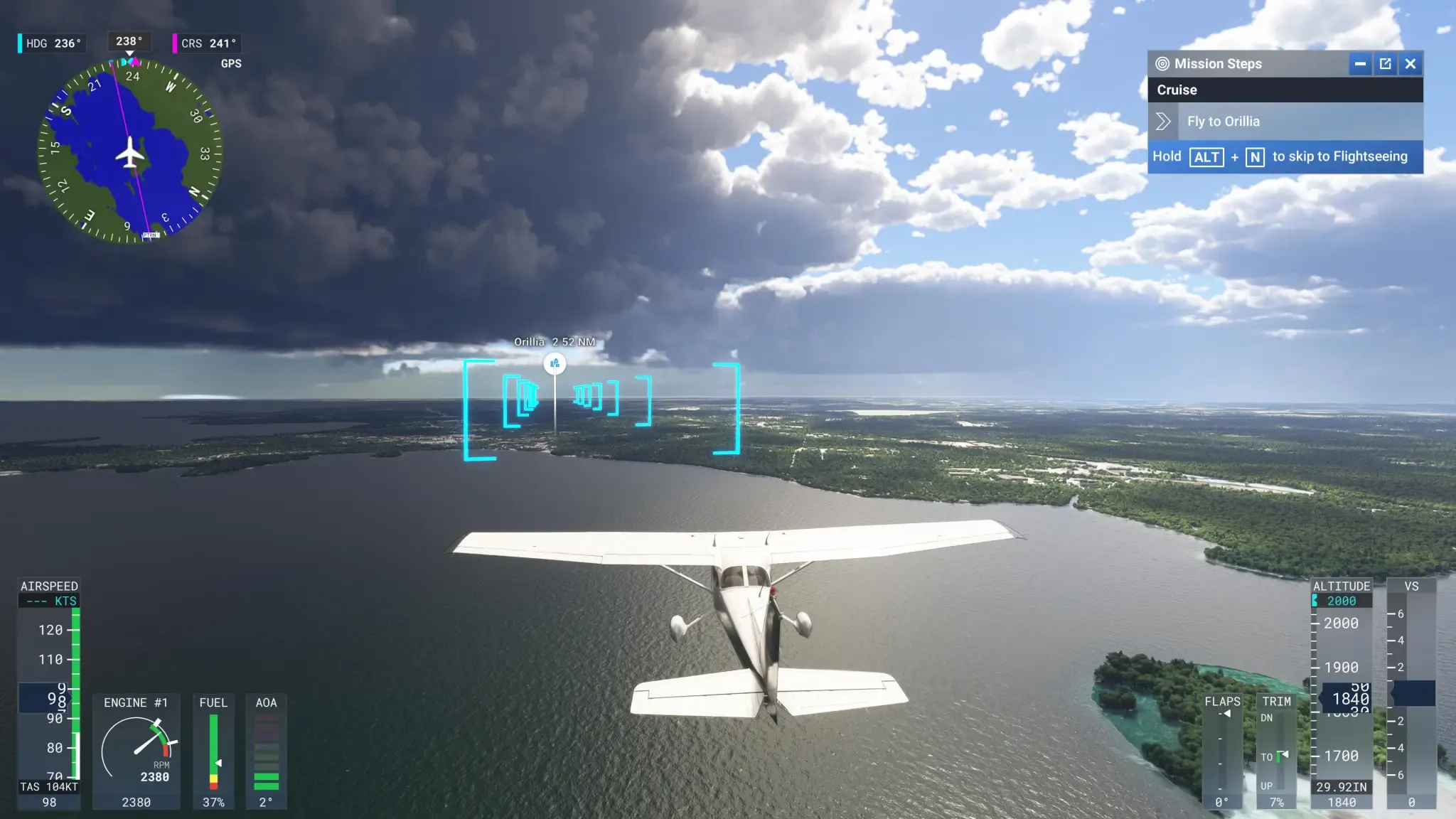
First Experience with MSFS 2024
I ordered MSFS 2024 Standard Edition on Steam during lunch that day — HKD 498 in the Hong Kong region, which is a fairly ‘reasonable’ price. Contrary to intuition, the base game is only about 8 GB. The maps, scenery, weather, and building models are streamed and downloaded in real time while you play, which requires a solid internet connection. Reddit posts mentioned you need at least 80 Mbps to connect reliably to Microsoft’s servers, especially since those servers are overseas. So you’ll want a good accelerator or some special network setup, otherwise even the initial Xbox sign-in to start the game may fail.
The PC and Xbox accounts are linked, so after launching from Steam you still have to sign into your Xbox account inside the game to sync purchases and versions. MSFS 2024 has an in-game marketplace for buying airports and aircraft. The game comes in three editions — Standard, Deluxe, and Premium Deluxe (small, medium, and extra-large) — and apart from unlocking additional aircraft and airports, there’s no functional difference between them.
MSFS 2024 also added a career (or “profession”) mode, a kind of linear mission progression: complete tasks to earn money, buy planes, and take on bigger jobs. As a complete beginner, I, of course, went looking for the tutorials. Counterintuitively, the beginner tutorials are hidden under the “Activities” section — I spent quite a while hunting for them.
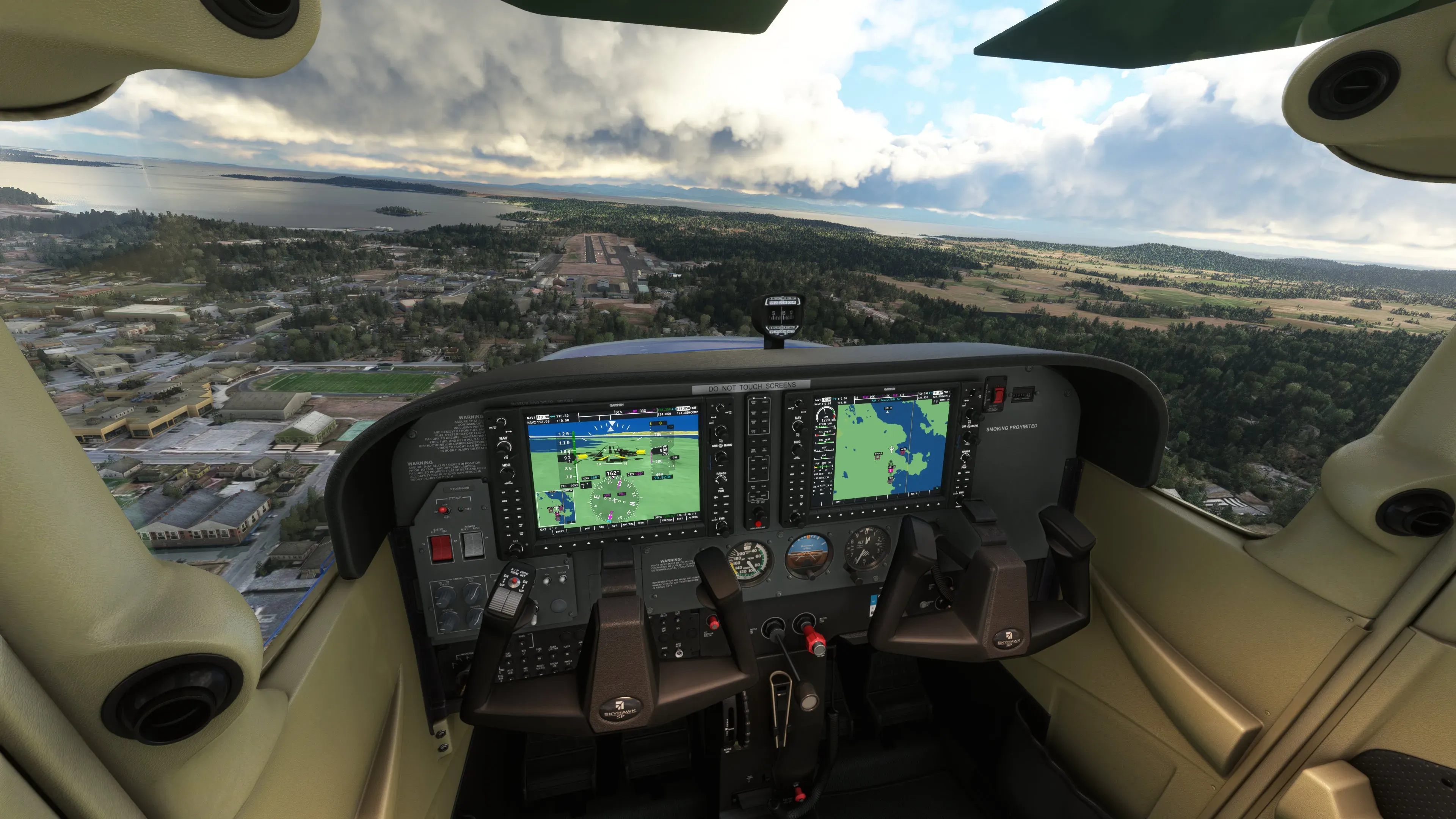
The tutorials cover basic instrument recognition, fundamental controls, and takeoffs and landings. For fixed-wing aircraft they use the Cessna 172 as an example. The cockpit visuals are impressively realistic; it really feels immersive. But to be honest, playing this with a keyboard is a bit torturous, especially rudder control. It’s hard to maintain smooth turns — you end up repeatedly tapping small adjustments, which is very uncomfortable, same with throttle. The root problem is trying to simulate linear controls with a non-linear device like a keyboard.
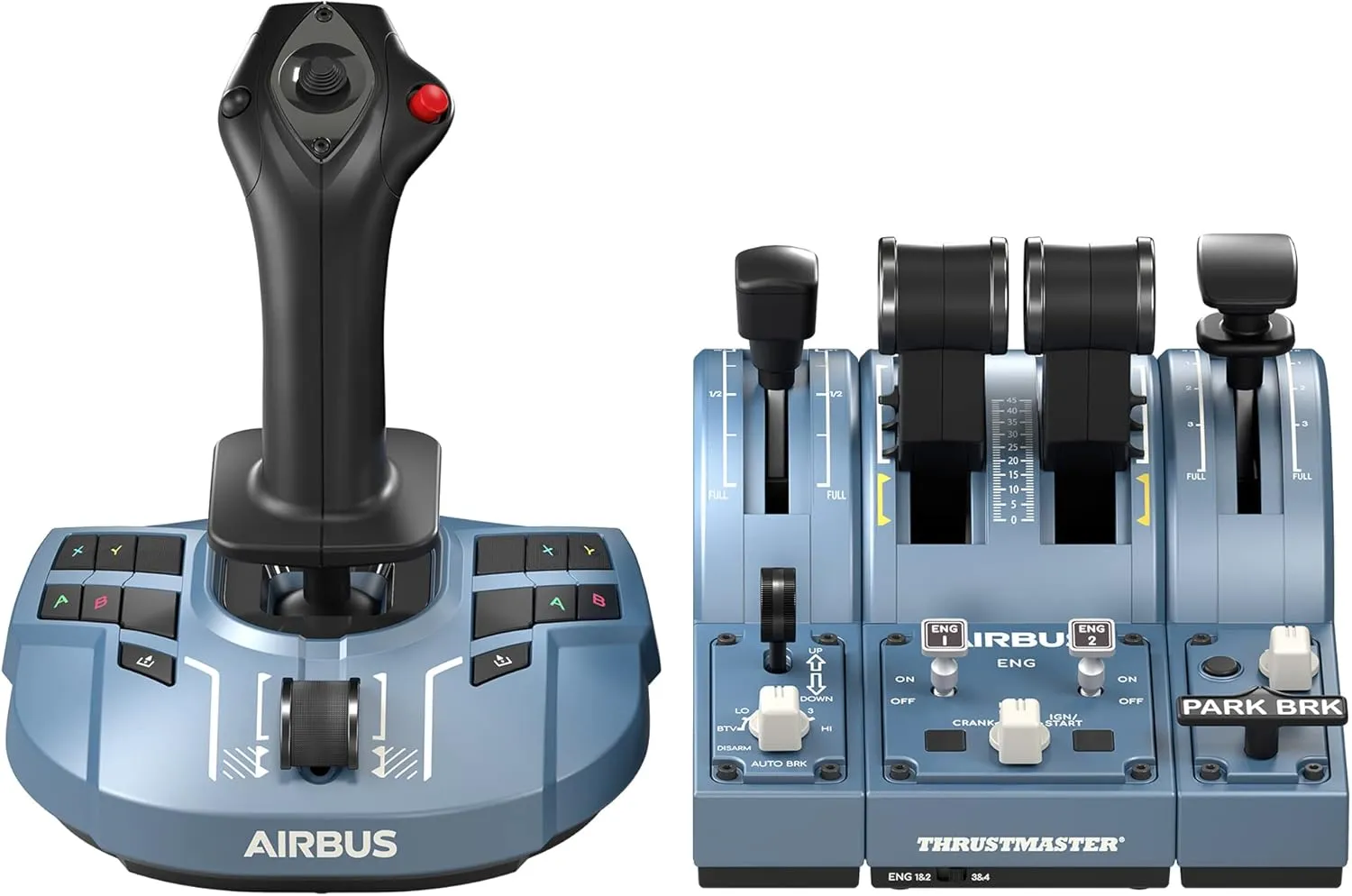
Thrustmaster TCA Captain Pack — Airbus Edition
How do you solve that mismatch? By getting linear control devices. The simplest option is a gamepad, but limited buttons often still require you to use the keyboard for many situations.
A more realistic approach is a dedicated flight joystick — it mimics the feel and operation of a real flight control and provides far better immersion when flying the corresponding aircraft type. Flight sticks generally come in two styles: Airbus-style and Boeing-style. The Airbus style is the stick you’d expect — a single central column — while the Boeing style is more like a yoke.
After comparing options on Taobao and JD multiple times, I settled on Thrustmaster’s TCA Captain Pack — Airbus Edition. It’s a bit pricey, about 1,800 RMB. SF Express was fast and delivered the next day.
The hardware itself isn’t large, but the boxes were huge. The two components were shipped separately in big cartons that nearly blocked my door. Whether it was overpackaging or not, it certainly did a great job of protecting the gear.
Setup was straightforward: the joystick is plug-and-play. After assembling the throttle and flaps unit and plugging it into the PC, you need to download a driver from Thrustmaster’s support site, install it, and the game will recognize the hardware.
You’ll want to check the key mappings in the game settings. A useful trick is to first find the action by its keyboard binding, then switch to the joystick settings and assign the corresponding joystick control. Most mappings are intuitive. I only changed the trim wheel mapping: by default adjusting the trim requires holding joystick button 7 plus the top mini-stick, which needs two hands and isn’t very convenient. The top mini-stick’s default role is just view control, which is unnecessary if you use the mouse or VR for looking around, so I reassigned the top mini-stick to control the trim wheel directly.
PICO, You Rascal
Whether it’s racing, trucking, or flight sims, VR is a topic you can’t avoid. I happen to own a Pico 4 Pro, so I decided to tinker.
At first I used Pico’s built-in Pico Connect. The experience was underwhelming: startup was clumsy and there were various bugs. One obvious bug was that if Pico Connect was active but MSFS 2024 hadn’t entered VR mode yet, the VR controllers wouldn’t register clicks; even after exiting VR, MSFS 2024 stopped responding to mouse clicks and I had to quit the game and restart. A simple workaround was to launch MSFS 2024 and use the mouse to enter VR mode first, then connect Pico Connect and SteamVR.
Still — annoying.
A bit of Googling suggested using Virtual Desktop. The good news: Virtual Desktop runs on Pico and can be downloaded from the Pico Store. The bad news: Virtual Desktop isn’t available in the China-region store, and my Pico was a China-region device.
So I did more web hunting and tried several partial solutions. The final fix was to flash the international firmware. You can download the non-China ROMs from here. After downloading, create a dload folder in internal storage, place the ROM zip there, then use the local upgrade option in Settings to install it. After the upgrade the system runs the international firmware.
The international firmware requires an international account — I recommend registering on your phone and then logging into the Pico on the headset. The Pico international app can be installed from APKPure. Virtual Desktop still can’t be found via the headset store search in my experience, but if you purchase it through the phone app, it will appear in the headset’s purchase history and you can download it from there.
For best results with Virtual Desktop, set OpenXR to use the VD environment (bypass SteamVR) to get a smoother experience.
Afterword
Putting this setup together took me a weekend. After flying two short routes, I somehow came down with a fever and had to lie down — go figure.